# Mailchimp
#### Step 1: Set Up Mailchimp Integration
To connect your Form with Mailchimp, follow these steps:
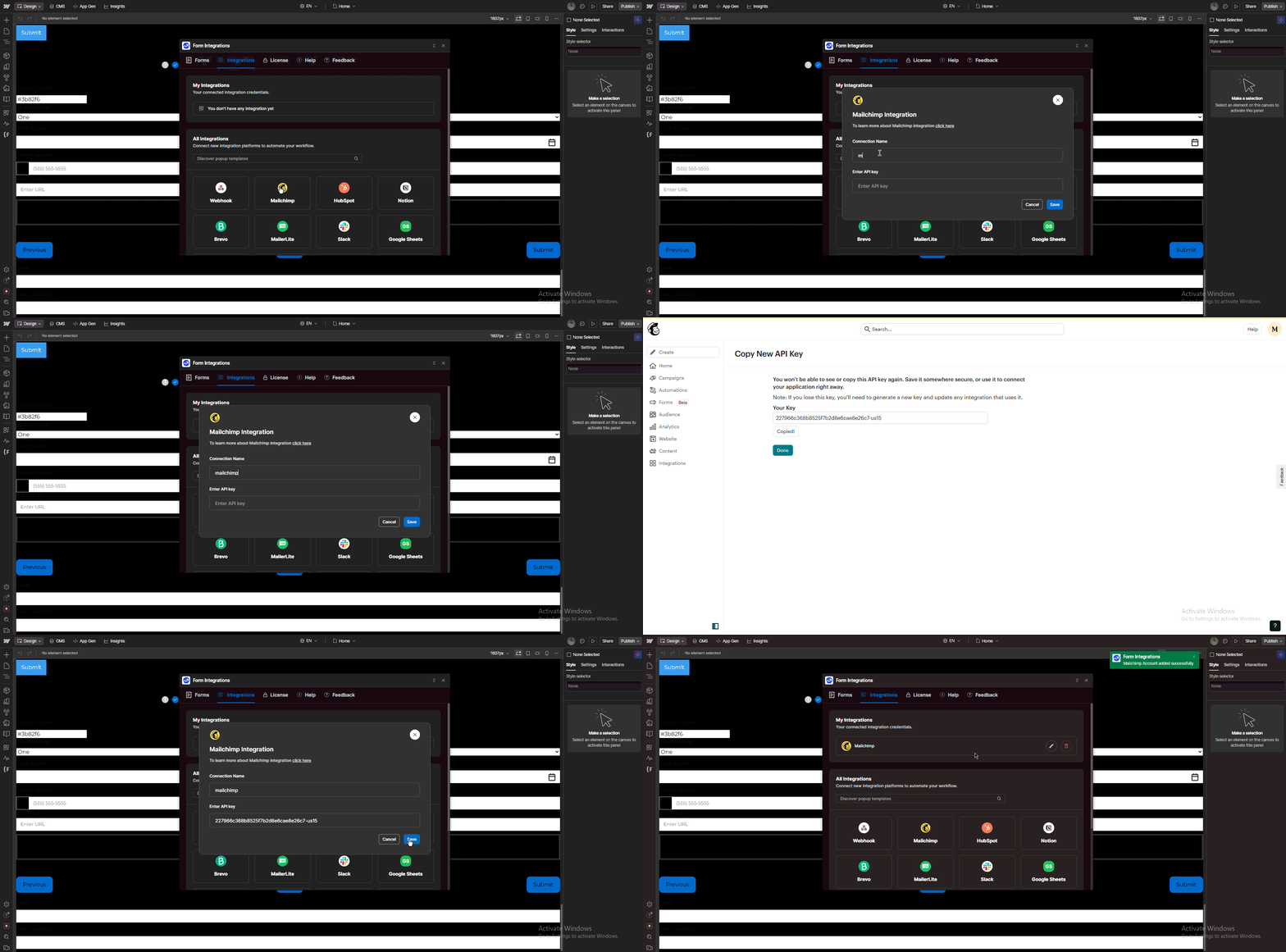
1. **Navigate to the Integrations Tab**\
From the main dashboard, go to the **Integrations** tab.
2. **Connect Mailchimp**\
Click the **Mailchimp** button.\
A Mailchimp setup form will appear.
3. **Configure the Mailchimp Connection**
* Enter a **unique connection name** to identify this Mailchimp integration.
* Paste your **Mailchimp API Key** from your Mailchimp account.
> 🔑 *You can generate your API key from your Mailchimp Account Settings.*
4. **Save the Connection**\
Click the **Save** button to store the Mailchimp integration.
#### Step 2: Connect Mailchimp to a Form
To use Mailchimp with a specific Form, follow the steps below:
1. **Navigate to the From Tab**\
From the dashboard, go to the **Forms tab**.
2. **Connect the Target Form**\
Select the target form page from the dropdown, then click the form’s **Connect Form** button.
3. **Connect Mailchimp**\
Click the **Mailchimp** Button.\
A Mailchimp setup pop-up will appear.
4. **Configure the Mailchimp Integration**
* Select the **previously created Mailchimp API key** from the dropdown.
5. **Select Mailchimp List**\
Choose your preferred **Mailchimp audience/list** where the data will be stored.
6. **Match Form Fields**\
Map the Form input fields to the corresponding Mailchimp list fields.
> 🛠️ *This allows you to control which user input gets saved to which Mailchimp field.*
7. **Test the Connection**\
Click **Test Connection** to verify everything is set up correctly.
8. **Save the Integration**\
If the test is successful, click **Save** to complete the Mailchimp setup for this Form.
> ✅ *Your Form is now successfully integrated with Mailchimp and ready to collect leads.*